Podcasting
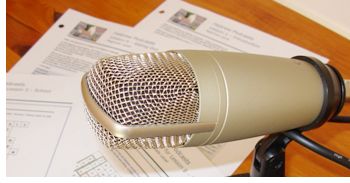 A podcast
is a series of audio or video files that are distributed on-line for playback on computers and portable devices.
You can listen and watch a podcast on an iPod, smart phone, tablet, or any other portable player that is capable
of playing MP3 audio files or MPEG-4 video files. You can also burn the audio to a CD and listen using a CD player
such as the one in your car.
A podcast
is a series of audio or video files that are distributed on-line for playback on computers and portable devices.
You can listen and watch a podcast on an iPod, smart phone, tablet, or any other portable player that is capable
of playing MP3 audio files or MPEG-4 video files. You can also burn the audio to a CD and listen using a CD player
such as the one in your car.
 To
get the podcast audio MP3 files, you can of course download them from our web site as they become available. You
could check the web site from time to time to see if there’s a new lesson, but there’s a much better way. Podcasts
use a method called RSS (Really Simple Syndication) to "broadcast" their new episodes (or lessons in our case).
To
get the podcast audio MP3 files, you can of course download them from our web site as they become available. You
could check the web site from time to time to see if there’s a new lesson, but there’s a much better way. Podcasts
use a method called RSS (Really Simple Syndication) to "broadcast" their new episodes (or lessons in our case).
To tune into the podcast and be automatically notified of new lessons, you can use Apple iTunes, BeyondPod, Apple Podcasts, and many other podcasting programs. For more information, see the Tune In Page.